Google Postmaster Tools v2: What Changed and How to Read It
Google has moved senders to a new Postmaster Tools. Here's what each page shows, what the new Compliance status and Deliverability analysis mean, what it can't tell you, and how to set it up in ten minutes.
 Written byBounceLayer Team
Quick answer
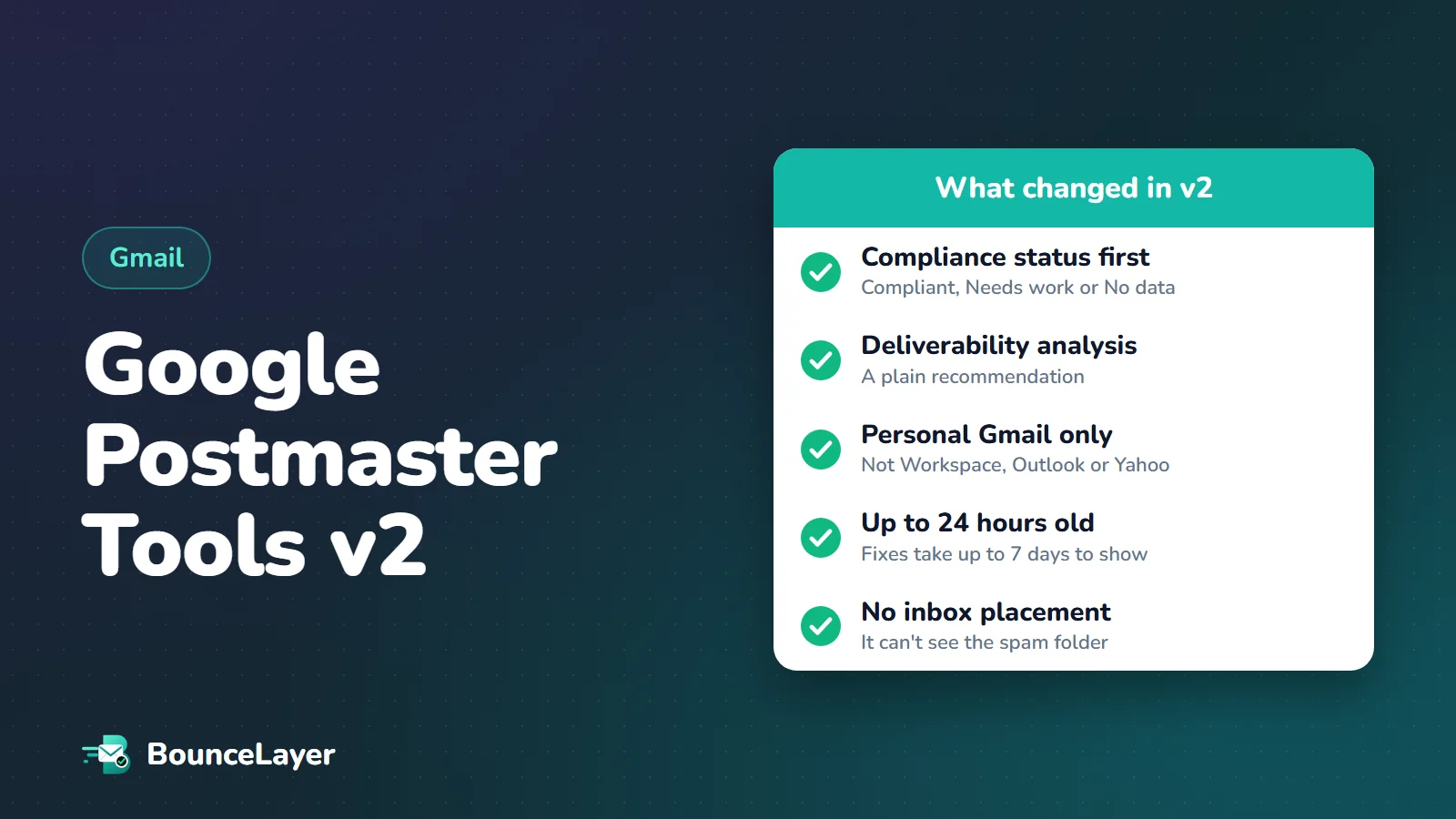
Google Postmaster Tools v2 is the new version of Google's free dashboard that shows how Gmail sees your email. Its main page, Compliance status, marks each of Gmail's sender requirements as Compliant, Needs work or No data found, and a new Deliverability analysis gives a plain recommendation for your domain. The data covers only mail sent to personal Gmail addresses, is usually updated within 24 hours, and can take up to 7 days to reflect a fix. The old version is being phased out, so set up v2 at postmaster.google.com.
What is Google Postmaster Tools?
Postmaster Tools is a free dashboard from Google that shows senders how Gmail treats their email: how many people mark it as spam, whether it passes authentication, and whether it meets Gmail's sender requirements. It's the closest thing to an official report card from the world's biggest mailbox provider.
Google has been moving everyone to a new version, usually called v2. According to Al Iverson of Spam Resource, who tracks this closely, the planned retirement of the old version was paused in late 2025 and restarted in August 2026, and many users now only have access to v2. Google's own help page links to a note about the old interface being deprecated.
If you bookmarked the old dashboards, or set this up years ago and forgot about it, this guide covers what you'll find now.
The pages in v2 and what each one shows
Google's help page for the v2 dashboards lists the following. You see data for a page only on days when you sent enough mail to Gmail.
Google's help page still lists IP Reputation and Domain Reputation among the dashboards. Spam Resource reports that v2 does not contain the reputation indicators the old version had. You may or may not see them in your account. Either way, don't build your routine around them: Compliance status and spam rate are what Google now puts first.
| Page | What it shows | Use it to |
|---|---|---|
| Compliance status | Whether you meet each of Gmail's sender requirements | Find exactly which rule you're failing |
| Spam rate | The share of your DKIM-signed mail that Gmail users reported as spam | Catch a bad campaign early |
| Feedback loop | Spam reports grouped by campaign, if you add Google's Feedback-ID header | See which campaign caused complaints |
| Authentication | How much of your mail passes SPF, DKIM and DMARC | Spot a tool sending without your signature |
| Encryption | The percentage of your mail sent over a secure (TLS) connection | Confirm it's at or near 100% |
| Delivery errors | Authenticated mail that Gmail rejected or delayed, and why | See rate limits and blocks |
| IP and domain reputation | A rating of Bad, Low, Medium or High | See the note below |
Bounces and complaints start with the list. Find the addresses that will bounce before your next send.
Check your listCompliance status: the page to check first
Compliance status is the main page in v2. It takes Gmail's published sender requirements and marks each one for your domain. There are three possible states.
Some requirements apply to everyone, and some only to bulk senders, which Google describes as about 5,000 or more messages to Gmail accounts in 24 hours.
- Compliant: you meet this requirement.
- Needs work: you don't, and Gmail may delay, reject or spam-folder your mail.
- No data found: Google hasn't seen enough of your mail to judge. It is not a pass.
| Requirement | Who it applies to |
|---|---|
| SPF and DKIM authentication | All senders |
| Valid DNS records (forward and reverse) | All senders |
| Correctly formatted messages | All senders |
| Encryption (TLS) | All senders |
| User-reported spam rate | All senders |
| DMARC authentication | Bulk senders |
| One-click unsubscribe | Bulk senders |
| Honouring unsubscribes | Bulk senders |
Deliverability analysis: the new plain-language verdict
Inside Compliance status there is now a section called Deliverability analysis. Google says it provides a recommendation about your domain's status with Gmail. In other words, instead of leaving you to interpret charts, it tells you what it thinks is wrong.
Google's help page lists the situations that trigger a recommendation. Email analytics company Suped, which documented the feature when it appeared in June 2026, reports that the matching reason codes are available through the Postmaster Tools API.
Google's sender guidelines say to keep your spam rate below 0.1% and never let it reach 0.3%. Suped reports that the SPAM_RATE_HIGH reason is tied to 0.1%. We could not confirm that figure in Google's own help pages, so treat 0.1% as the level to stay under.
| What Google found | Reason code (per Suped) | What to do |
|---|---|---|
| You send too little mail to judge | MESSAGE_VOLUME_LOW | Nothing is wrong; there just isn't enough data |
| Too many delivery failures | SMTP_ERRORS_HIGH | Check Delivery errors; remove dead addresses; slow down |
| Spam rate above the recommended level | SPAM_RATE_HIGH | Stop mailing people who don't engage; make unsubscribing easy |
| Low engagement | USER_FEEDBACK_LOW | Send to recent openers and clickers first |
| People don't want the mail | USER_FEEDBACK_NEGATIVE | Review how addresses got on the list |
| Sender requirements not met | SENDER_NOT_COMPLIANT | Fix the items marked Needs work |
What the data covers, and how fresh it is
Three limits explain most of the confusion people have with Postmaster Tools.
- Personal Gmail only. Google says the dashboard data applies only to messages sent to personal Gmail accounts, meaning addresses ending in @gmail.com or @googlemail.com. Mail to companies on Google Workspace isn't included.
- Not real time. Data is typically updated within 24 hours but can take longer.
- Slow to forgive. After you fix a problem, Google says it can take up to 7 days for the change to be reflected, because the status uses an average over several days.
- Main domain only for compliance. Compliance status applies to your primary domain, not to subdomains. Mail from subdomains counts towards the main domain's result.
- Quiet on low-volume days. Google doesn't publish a minimum, but says data may be missing on days when you send too little.
What Postmaster Tools can't tell you
It is a report from one provider about one kind of mailbox. It's worth knowing where it stops.
Most "Needs work" results on spam rate and delivery errors trace back to the list: addresses that no longer exist, typos and people who never asked for the email. Removing those before you send is the one change that improves every number on the dashboard.
- It doesn't show whether a message went to the inbox or the spam folder.
- It says nothing about Outlook, Yahoo, Apple or business mail servers.
- It doesn't list which addresses bounced or which people complained.
- It reports problems after the send, not before. A bad list has already done its damage by the time the chart moves.
How to set up Postmaster Tools v2
Setup takes about ten minutes and needs access to your domain's DNS settings.
- Go to postmaster.google.com and sign in with a Google account.
- Click "Add new domain" and enter the domain you sign email with: the one in your DKIM signature (d=) or your SPF return-path domain.
- Choose "Verify domain" and copy the TXT or CNAME record Google shows you into your DNS.
- Click Verify. Google says this usually works right away but can take up to 10 minutes.
- Wait for data. Nothing appears until the domain is verified and you've sent enough mail to Gmail.
- Sending from a subdomain such as mail.yourdomain.com? Add it too to see its own charts. If the main domain is verified, subdomains don't need verifying again.
A simple weekly routine
You don't need to watch it daily. Once a week, and the day after any large send, check four things.
| Check | Healthy | If not |
|---|---|---|
| Compliance status | Everything Compliant | Fix each "Needs work" item; allow up to 7 days to clear |
| Spam rate | Below 0.1% | Cut inactive subscribers; send less often; check sign-up sources |
| Authentication | SPF, DKIM and DMARC near 100% | Find the tool sending without your domain's signature |
| Delivery errors | Close to zero | Clean the list; slow your sending if Gmail is rate limiting |
Common questions
What is Google Postmaster Tools v2?
It is the new version of Google's free dashboard for email senders. It shows whether your domain meets Gmail's sender requirements, your spam rate, authentication results, encryption and delivery errors, for mail sent to personal Gmail addresses.
Is the old Postmaster Tools being shut down?
It is being phased out. Spam Resource reported in August 2026 that the paused retirement had resumed and that many users now only have access to v2. Google's help page links to a deprecation notice for the old interface.
What does "Needs work" mean in Compliance status?
It means your domain is not meeting that Gmail sender requirement, such as authentication, spam rate or one-click unsubscribe. Gmail may delay, reject or spam-folder mail from senders that don't comply. After a fix, the status can take up to 7 days to change.
Why does Postmaster Tools show "No data found"?
Usually because you haven't sent enough mail to personal Gmail addresses, the domain isn't verified yet, or you added a different domain from the one that signs your email. It is not a pass or a fail.
Does Postmaster Tools v2 still show domain reputation?
Sources disagree. Google's help page still lists IP and domain reputation dashboards, while Spam Resource reports that v2 does not include the reputation indicators the old version had. Rely on Compliance status and spam rate instead.
What is Deliverability analysis in Postmaster Tools?
It is a section inside Compliance status that gives a recommendation about your domain's status with Gmail, for example that your spam rate is too high, delivery failures are high, or you send too little mail to judge.
Does Postmaster Tools show inbox placement?
No. It doesn't say whether a message landed in the inbox or the spam folder, and it covers only personal Gmail accounts, not Google Workspace, Outlook or Yahoo.